19 tools, 6 capability domains
RockFlow MCP is a hosted MCP service. Once connected, your AI client discovers all 19 tools automatically, covering quotes, options, accounts, currency exchange and trading, with the same tool set for paper and live. No code to write, no API key to request: you ask in plain language and the AI decides which tool to call.
Real-time quotes
4Search US and Hong Kong symbols by company name or ticker, get the latest price and a detailed quote, and pull up to five years of history.
search_tickerget_latest_tickget_quoteget_chart
Options
4List expiration dates, pull the full option chain by expiry and call/put, batch-query contract quotes (including greeks, implied volatility and open interest), and look up Better Buys (Short Put) suggestions.
get_option_expiry_datesget_option_chainget_option_quoteget_better_buys
Accounts & portfolio
6See positions and P&L, cash and total assets, the order list and individual order details, your watchlist, and how much of a symbol you can currently buy or sell.
get_positionsget_assetsget_ordersget_orderget_watchlistget_tradable_quantity
Trading
2Place and cancel stock or option orders, market or limit; Hong Kong stocks and options support limit orders only.
create_ordercancel_order
Currency exchange
2Check the exchange rate between two currencies (an indicative price including spread) and estimate what an amount converts to; exchange USD, HKD and other currencies inside the account, with virtual funds on paper, settled asynchronously, and only one pending exchange at a time.
get_exchange_rateexchange_currency
User
1Read the basic profile of the authorized account.
get_profile
A few typical uses: have the AI analyse the current market with RockFlow; have it read your positions and break down concentration and correlation by sector; have it combine the market and portfolio reads into an adjustment plan and, once you approve, place the orders itself. All tools open up after authorization — there is no separate read-only scope — so it is worth getting familiar on paper first.
Pick your AI client
Two things to have ready: a RockFlow ID (paper trading needs no brokerage onboarding, just register; live trading needs an opened RockFlow securities account) and an AI client that supports MCP. The whole thing takes about a minute.
Claude web and desktop
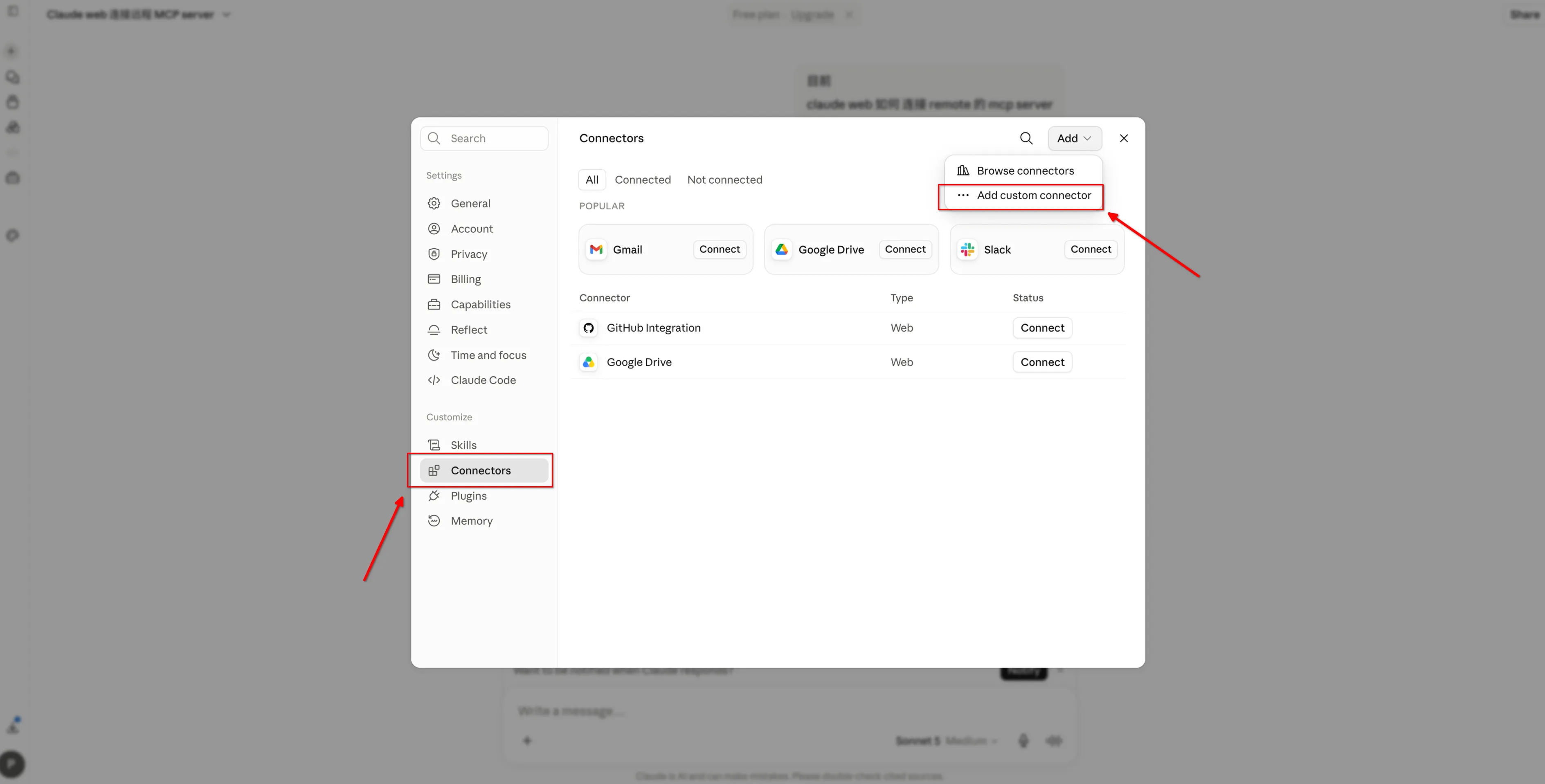
In claude.ai or the Claude desktop app, go to Settings → Connectors and click Add in the top right → Add custom connector. Put rockflow in the first field and the endpoint in the second, then click Add.
https://mcp.rockflow.aiClick Connect on the rockflow entry in the list. The RockFlow sign-in page opens in your browser: sign in, pick paper or live, and approve.
Start a new chat, click the + at the bottom left of the input box → Connectors, check that rockflow is on, then ask “Show me my assets”.
Show me my assetsThe free Claude plan can add it too, but keeps only one custom connector.
Settings → Connectors, then Add in the top right → Add custom connector
rockflow in the first field, the endpoint in the second, then Add
Three steps
Paper or live is your choice at the sign-in step. The paper account is created automatically, so your first run touches no real money.
Add
Send the sentence above to your AI and it runs the install command itself. On clients with no AI to do it for you, paste the endpoint in the settings.
Authorize
The RockFlow sign-in page opens in your browser: sign in, pick paper or live, and approve.
Ask
Start with a read-only question, such as “Use RockFlow MCP to show me my assets”.
This guide reflects each client's interface as of September 2026. Menu names and commands may change between versions; where they differ, follow the client's own documentation.
What to ask once it is set up
Start with read-only questions and only let it place orders once you know how the tools behave. These three are ready to use.
AI client — market analysis
Start on paper.
All tools open up after authorization and there is no separate read-only scope, so choose paper the first time you authorize. The paper account is created automatically, so your first run touches no real money.
01Start on paper
All tools open up after authorization and there is no separate read-only scope, so choose paper the first time you authorize.
02Confirm before ordering
Ask the AI in your prompt to confirm with you before executing each order.
03Revoke any time
Authorization uses standard OAuth 2.1 and your RockFlow password never reaches the client. For a client you no longer use, just remove its rockflow connection.
Frequently asked questions
The AI installed it, but the client cannot find RockFlow MCP.
Claude Code and Codex only pick up a newly added server in a new session. If it is still missing, run claude mcp list or codex mcp list in your terminal to confirm it was added. Claude Code by default only applies to the folder the command was run in; the command with --scope user applies to every folder.
Sign-in failed. What now?
Check that your RockFlow account is in good standing with the required verification completed, then delete rockflow in the client, add it again and start authorization once more.
A tool returns AUTH_REQUIRED.
Authorization has not been completed, or it has expired. Start authorization again in the client and retry.
How do I switch from paper to live, or back?
Just tell the AI “re-authenticate RockFlow MCP for me” and it reopens the RockFlow sign-in page, where you pick the account type again. On clients like Claude web and Grok, disconnect rockflow in the connector settings and connect again. Live trading needs an opened RockFlow securities account.
Do I need a securities account?
Not for paper trading — a registered RockFlow ID is enough, and the paper account is created automatically when you authorize.
Does it cost anything?
No, RockFlow MCP is free to use for now.
Which clients are supported?
The ones listed here: Claude Code, Codex CLI, Codex Desktop, Cursor, Claude web and desktop, Grok and WorkBuddy. Any other client that implements MCP OAuth 2.1 and can open a browser connects the same way.